
HONOR Phone Tips for Efficient Multitasking
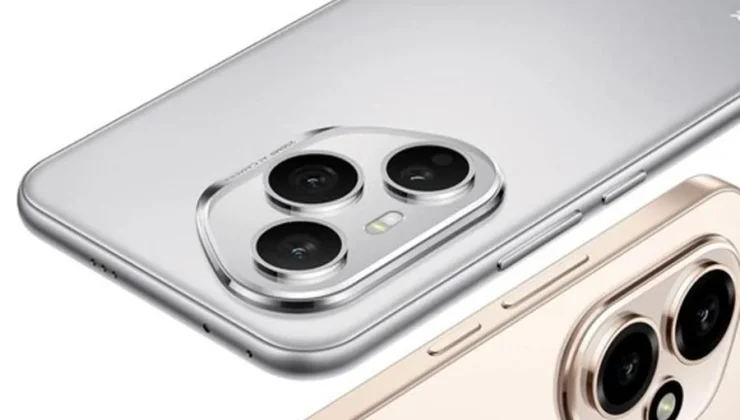
HONOR phones are designed to cater to the dynamic needs of users seeking productivity with convenience. With cutting-edge technology, these devices enable users to juggle multiple tasks effortlessly. By employing effective multitasking features such as split-screen mode, floating windows, and smart capabilities, HONOR smartphones empower users to optimize their workflow. Whether you’re responding to emails while browsing or watching a tutorial while jotting notes, these tools ensure seamless transitions between tasks. Let’s delve into tips and tricks to harness the full potential of your HONOR device, so your multitasking challenges become a thing of the past.
Mastering Split-Screen Mode
Enabling Split-Screen on HONOR Devices
To activate split-screen mode on HONOR devices, start by opening one of the apps you’d like to use. Tap the recent apps button or swipe from the left of the screen, depending on your phone’s navigation settings. Then, tap the split-screen option, usually displayed as an icon at the top of the app. Choose another app from the recent apps view or the home screen to occupy the second half of your screen.
Adjusting App Layouts and Switching Panes
Once in split-screen mode, adjusting the layout is straightforward. A slider is available between the two apps to adjust the size allocation. Want more space for a video than your email app? Simply drag the slider until you find the most comfortable configuration. Switching panes is also intuitive—tap the screen area of the app you wish to focus more on, and the device will respond accordingly.
Drag-and-Drop Functionality Between Apps
HONOR’s split-screen feature isn’t just about viewing two apps simultaneously. It also supports drag-and-drop actions, enhancing your productivity. You can easily drag text, images, or links from one app to another. For example, copy a quote from an article and drop it directly into a chat or email. This cuts down time spent switching apps and ensures a smoother workflow.
Utilizing Floating Windows for Seamless Task Switching
Activating Floating Windows
HONOR’s floating windows are a boon for multitaskers. To activate, open an app, then go to recent apps. Here, press and hold the app’s icon to reveal options; select ‘Open in a floating window’. The chosen app will appear over your current screen, allowing quick glances without switching apps entirely.
Resizing and Moving Floating Windows
Resizing a floating window is as simple as dragging its corner to adjust as needed. This flexibility allows you to customize how much of your screen the window should occupy. Moving the floating window requires dragging it across the screen, adjusting as per your workflow requirements.
Minimizing and Maximizing Floating Windows
Minimizing a floating window without closing it can be achieved by tapping the minimize button, typically resting on top. This action keeps it as a small icon on the home screen for easy access. To maximize, simply tap the icon, and it will regain its previous size and location, ensuring continuity.
Enhancing Performance for Smooth Multitasking
Optimizing RAM and Background Processes
Effective multitasking demands smooth performance, which is heavily reliant on RAM management. Navigate to your device’s settings to view background processes. Disable unnecessary apps by force-closing them, or use the built-in optimizer tool for cleaning up RAM usage, which HONOR frequently updates.
Updating Software for Improved Efficiency
Keep your HONOR device’s software up-to-date to leverage performance enhancements and new multitasking features. Regular updates often include bug fixes and optimizations specifically tailored to improve multitasking. To check for updates: head over to Settings > Software Update and download any pending updates.
Managing Storage and Clearing Cache
Adequate storage is vital for your device’s performance. Regularly manage storage by deleting unused apps, big files, or transferring them to the cloud. Clearing cache data via Settings > Storage can also recover space and make navigating between tasks zippier, enhancing your phone’s efficiency.
Leveraging Smart Features for Multitasking

Multi-Window Dock Customization
HONOR’s Multi-Window Dock offers a customizable dock on the edge of your screen. Here, you can place frequently used apps for quick access. To customize, tap on the overlay and add apps by dragging them into the dock. This allows you to open applications in split-screen or floating windows easily.
Utilizing Magic Text
Magic Text on HONOR devices assists in recognizing and interacting with text directly within apps. You can highlight, copy, or search text within seconds, minimizing disruptions as you multitask. Whether it’s a phone number you need to call or an article you wish to share, Magic Text is your reliable tool.
App Twin Feature
Those managing multiple accounts will find HONOR’s App Twin feature handy. It allows you to clone supported apps for dual accounts. Access this feature in Settings > App Twin, where you can enable it for applications like WhatsApp or Facebook, thereby handling personal and professional profiles concurrently.
Private Space
Private Space allows for a separate space on your device to manage different work profiles or personal apps without overlapping data. It functions as another phone within your phone. To activate, go to Settings > Security, enabling PrivateSpace for more organized multitasking environments.
Conclusion
By utilizing HONOR’s multitasking features, users can significantly boost productivity. Embrace the split-screen and floating windows to simplify task management. Refine performance through RAM optimization, and experiment with smart features for a tailored experience. Whether you’re exploring powerful functionality or checking the HONOR 400 Pro price uk, HONOR’s multitasking capabilities are designed to streamline your daily tasks, making the transition between activities smooth and efficient, freeing you from the juggling act of handling one task at a time.