
How Do I Change My Remote Desktop Password If Expired | 6 Steps
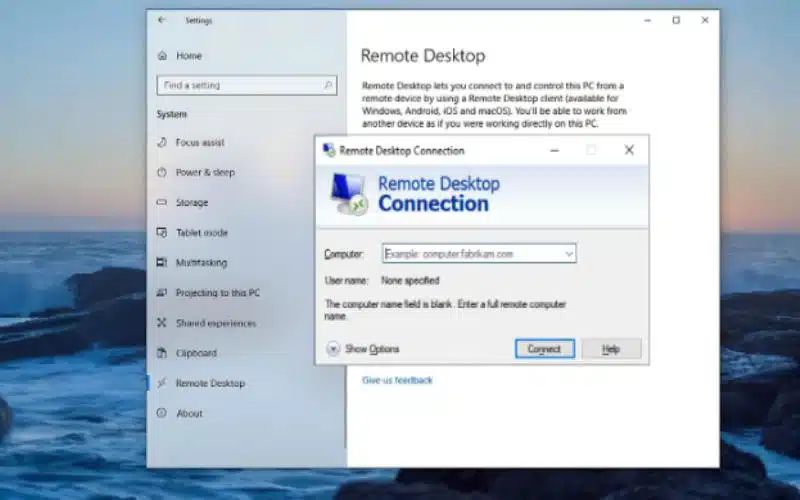
Has your Remote Desktop password expired, leaving you locked out of your system? Don’t panic! Changing your password is a simple yet crucial step to regain access and ensure your security.
Whether you’re working remotely or managing a server, keeping your login credentials up-to-date is vital for uninterrupted access and protection. Today, we’ll walk you through the process of changing your Remote Desktop password, ensuring you’re back online in no time.
From signing in to your account and updating the password to configuring your Remote Desktop application, we’ve got you covered. Follow these straightforward steps, and you’ll be back in control, effortlessly managing your remote sessions without worrying about expired passwords!
Key Steps to Change a Remote Desktop Password If It Is Expired
If your Remote Desktop password has expired, you’ll need to take immediate action to regain access. Start by:
Step 1: Sign in to your Account
To begin changing your Remote Desktop password, you’ll need to log in to your account using your current credentials. If your password has expired, you may encounter issues accessing your account. In this case, try using a backup or temporary login if you have one available.
If you’re locked out entirely, you may need to contact your system administrator for assistance. Make sure you have your user ID and any necessary identification ready for verification. Once logged in, you’ll be prepared to proceed to the next steps in changing your password.
Step 2: Access User Account Settings
Accessing your User Account Settings is the next essential step in remote desktop change password. Once you’ve logged in, you can find the User Account Settings either through the Control Panel or the Settings menu.
If you’re using Windows 10, click on the Start menu, then select “Settings.” From there, navigate to “Accounts.” If you’re on an earlier version, open the Control Panel and look for “User Accounts.” This section is where you can manage your password settings.
Make sure to familiarize yourself with the available options, as this will streamline the process for changing your password. Once you’ve located the User Account Settings, you’re well on your way to updating your password effectively.
Step 3: Change the Password
Now it’s time to change your password. In the user settings, select the option to change your password. If your old password is still available, enter it in the designated field.
Next, create a new password that meets the required security standards. This typically includes a mix of uppercase letters, lowercase letters, numbers, and special characters, ensuring that your new password is strong and secure. Make sure it’s something you can remember but also difficult for others to guess.
Once you’ve entered the new password, confirm it by typing it again in the confirmation field. After that, save your changes to complete the password update process. You’re now ready to access your Remote Desktop with the new credentials.
Step 4: Update Your Remote Desktop Credentials
Once you’ve successfully changed your password, it’s essential to update your Remote Desktop credentials to guarantee uninterrupted access. Open your Remote Desktop client and navigate to the connection settings.
Here, locate the section where your saved username is displayed. Input your new password in the appropriate field. Verify that you’ve entered the password accurately to avoid any connection issues. After updating, save the changes and exit the settings.
This step is important, as failing to update your credentials may lead to access problems when you try to connect remotely. By keeping your credentials current, you maintain secure and seamless access to your system, enhancing your remote working experience.
Step 5: Test the New Password
The best way is to log in to your Remote Desktop using the updated credentials. Start by launching the Remote Desktop application and enter the IP address or hostname of the remote machine. In the login prompt, input your username and the new password you’ve just set.
If you can connect without any errors, congratulations! Your new password is functioning as intended. If you encounter any issues, double-check the password for typos and verify that you’ve entered the correct username.
Testing your new password is critical to confirm seamless access to your remote work environment. Once confirmed, you’re ready to proceed with your tasks confidently.
Step 6: Security Considerations
After confirming your new password works, it’s important to contemplate security aspects, especially if your password has expired. Verify that your new password is strong and secure; it should include a mix of uppercase letters, lowercase letters, numbers, and special characters.
Consider using a open source password manager to store your new credentials safely, reducing the risk of forgotten passwords or writing them down insecurely. Additionally, enable two-factor authentication if available.
This adds an extra layer of security to your Remote Desktop access, making it considerably harder for unauthorized users to gain entry. Regularly review your security settings and update your password periodically to maintain a robust defense against potential threats.
Why is my Remote Desktop password expiring?
Ever wondered why your Remote Desktop password keeps expiring? This is often due to security policies set by your network or system administrator. These policies are designed to guarantee that only authorized users have access to sensitive data and resources.
Requiring you to change your password periodically enhances overall security and reduces the risk of unauthorized access. Expiration intervals can vary based on the organization’s security requirements, and they aim to minimize vulnerabilities associated with stale passwords.
If you’re frequently facing password expiration, it’s a good idea to consult your IT department. They can provide specifics on the policies in place and any recommendations for creating secure, memorable passwords that comply with those policies.
Can I use the same password after it expires?
When your Remote Desktop password expires, you can’t simply reuse your old one. Typically, expired passwords can’t be reused until they are reset by you or an administrator. This security measure guarantees that your account remains protected and reduces the risk of unauthorized access.
When choosing a new password, it’s important to select one that hasn’t been used before, as reusing expired passwords is generally prohibited. This means you’ll need to create a unique password that meets your organization’s security guidelines.
How do I ensure my new Remote Desktop password is secure?
To guarantee your new Remote Desktop password is secure, start by creating a password that’s long and complex. Aim for at least 12 characters, mixing uppercase and lowercase letters, numbers, and special characters. This combination makes it harder for unauthorized users to guess.
Avoid easily guessable information like your name or birthdate, as these can be easily discovered. Consider using a password manager to generate and store your passwords securely, which can help you create unique passwords for each of your accounts.
Stay Secure: Easy Steps to Keep Your Remote Desktop Experience Hassle-Free
In summary, changing your expired Remote Desktop password might seem intimidating, but it’s manageable with the right steps. Remember, “an ounce of prevention is worth a pound of cure.” Regularly updating your password can save you from future lockouts.
By creating a strong, secure password now, you not only regain access but also enhance your overall security. Stay vigilant, and don’t hesitate to follow these guidelines to keep your Remote Desktop experience seamless and secure.